English
Game Operations
The main action changes between Install Game, Update Game, and Start Game based on installation and version status. The same bottom area shows operation progress and controls. Failure notifications offer View Log for troubleshooting.
Install and update
- Select Install Game or Update Game to fetch the manifest and plan transfers.
- Wait for downloads. Files are written to .tmp files first and resumed when supported.
- After CRC64 verification, the launcher updates the local manifest and game configuration.
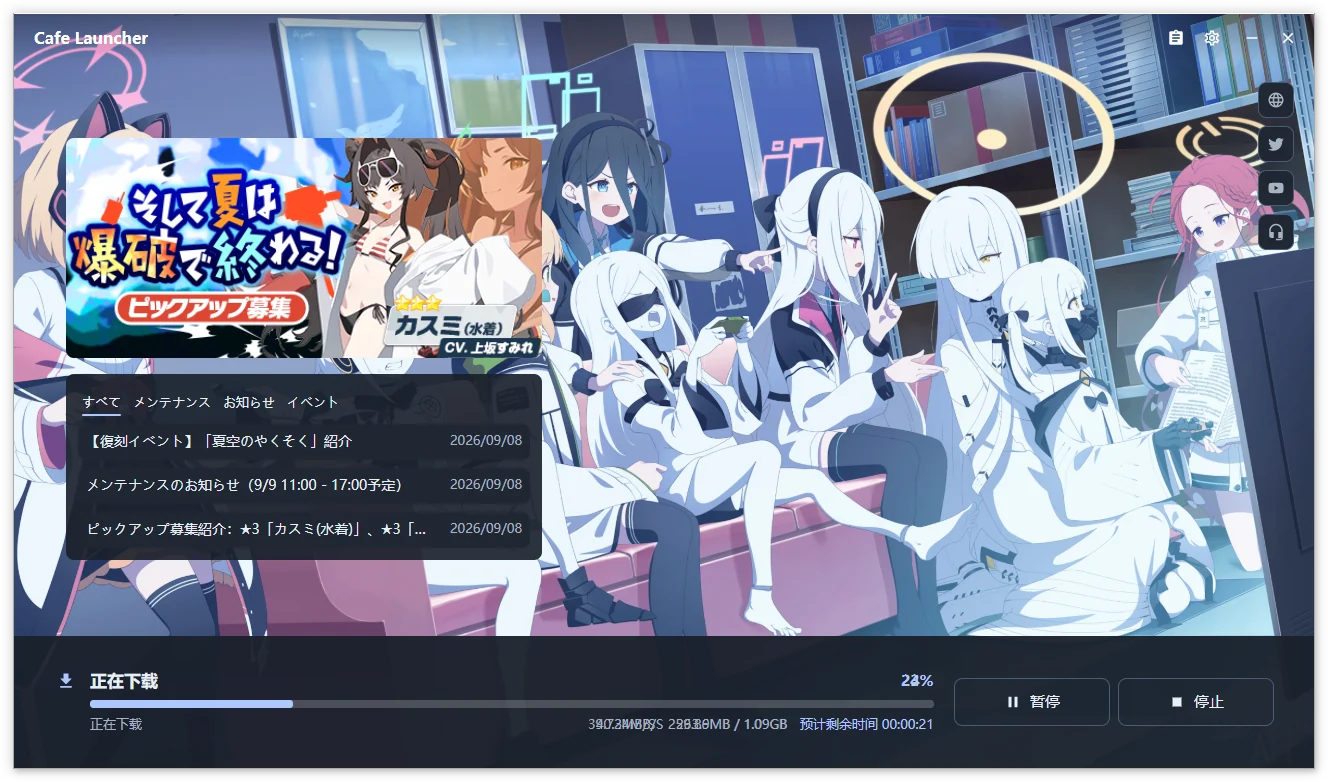
The progress area shows percentage, speed, sizes, and remaining time; the status area identifies the source.
| Action | Result |
|---|---|
| Pause | Suspend transfers and retain current progress |
| Resume | Continue using available temporary files |
| Stop | Confirm cancellation and discard this task's recovery record |
| Normal exit | Wait for cleanup and preserve a recovery record for next launch |
| Speed limit | Adjust in network settings |
Close and Stop counts as an explicit stop. Recovery requires matching game version, manifest, directory, and download source; old tasks are not applied to a different installation.
Disk checks credit resumable .tmp bytes in the current plan; final verification is still required. Waiting for a response or receiving no data for 60 seconds triggers network retry. A large file that keeps receiving data has no fixed total transfer deadline.
Repair
- Close the game.
- Choose Repair under Settings → Game or the game menu.
- Confirm and wait for CRC64 checks against the remote manifest; missing or mismatched files are downloaded again.
- Review the result. On failure, use View Log or export diagnostics.
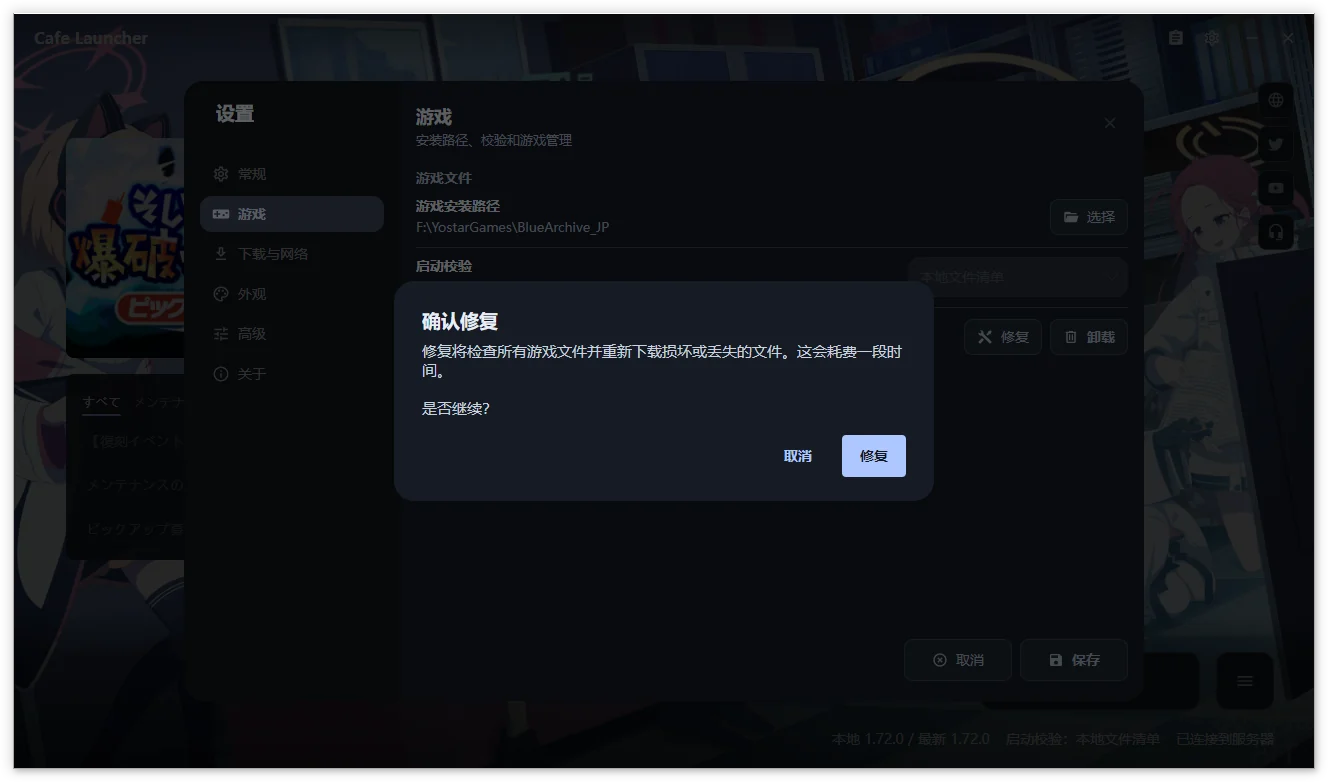
Launch verification checks only existence and size. Use repair for content integrity and after changing download sources so files match the new manifest.
Launch the game
Select Start Game to run the configured verification and launch the entry in the local installation state. Successful launch minimizes to tray by default; change this under Settings → General.
| Session status | Meaning |
|---|---|
| Game starting | Waiting for the runner and game process |
| Game running | Game process confirmed |
| Game exited | Session ended; an attributable exit code is shown when available |
| Launch failure | No successful running state; the main window is restored with an error |
The status row is hidden without a session. Normal exit updates the text without another notification. Wine / Proton may not provide an attributable exit code; an early runner exit or damaged environment can cause launch failure.
Missing or mismatched files lead to a repair prompt:
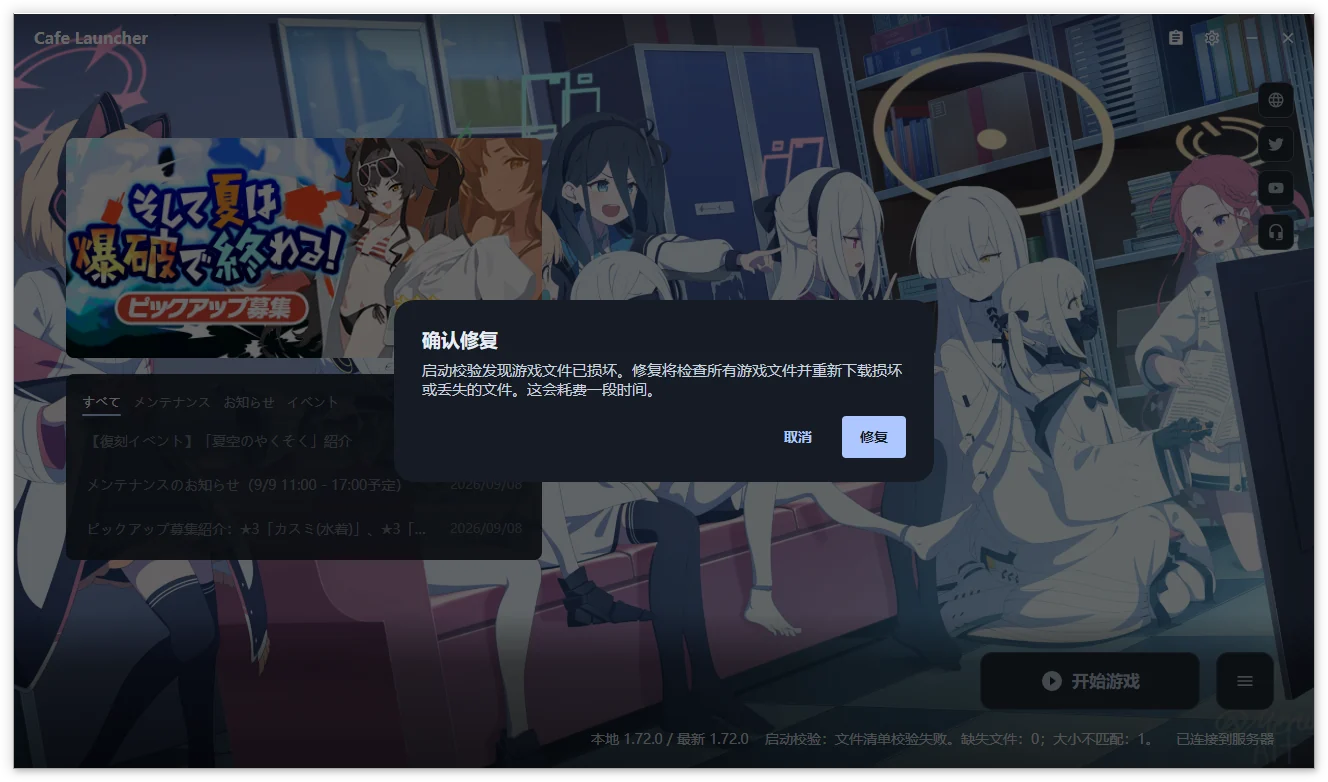
Linux requires a compatibility runtime. Game launch is unavailable on macOS.
Game menu
When ready, use the menu control beside Start Game. The main part still launches directly. Both compact and hidden status-panel layouts provide this control.
| Action | Purpose |
|---|---|
| Check for Updates | Refresh the remote game version and main action |
| Add Desktop Shortcut | Create a shortcut to the current target; Windows only |
| Open Game Directory | Open the current folder |
| Repair | Check CRC64 integrity and restore files |
| Uninstall | Remove the whole game directory after confirmation |
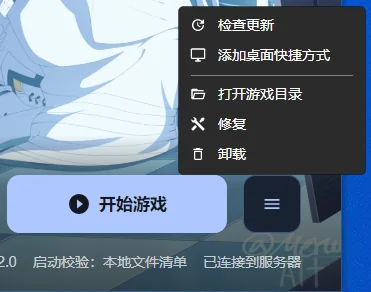
This screenshot shows an older menu. The current control is beside Start Game.
Uninstall the game
Close the game, choose Uninstall from Settings or the game menu, and review the full path, estimated size, and optional managed compatibility-environment cleanup before confirming.
WARNING
The whole game directory is deleted, including game-downloaded resources and files you added. Installation state, recovery records, and desktop shortcuts are also removed. Back up anything needed first.
The panel shows scanning, deletion progress, and results, including paths that could not be removed. Keep the launcher open; minimizing is allowed. A custom Prefix outside the game directory and selected managed subtree is preserved.
Launcher removal is separate. See Uninstall and data.
Log viewer
Open Settings → Advanced → View Log to browse, search, and filter current and rotated logs.
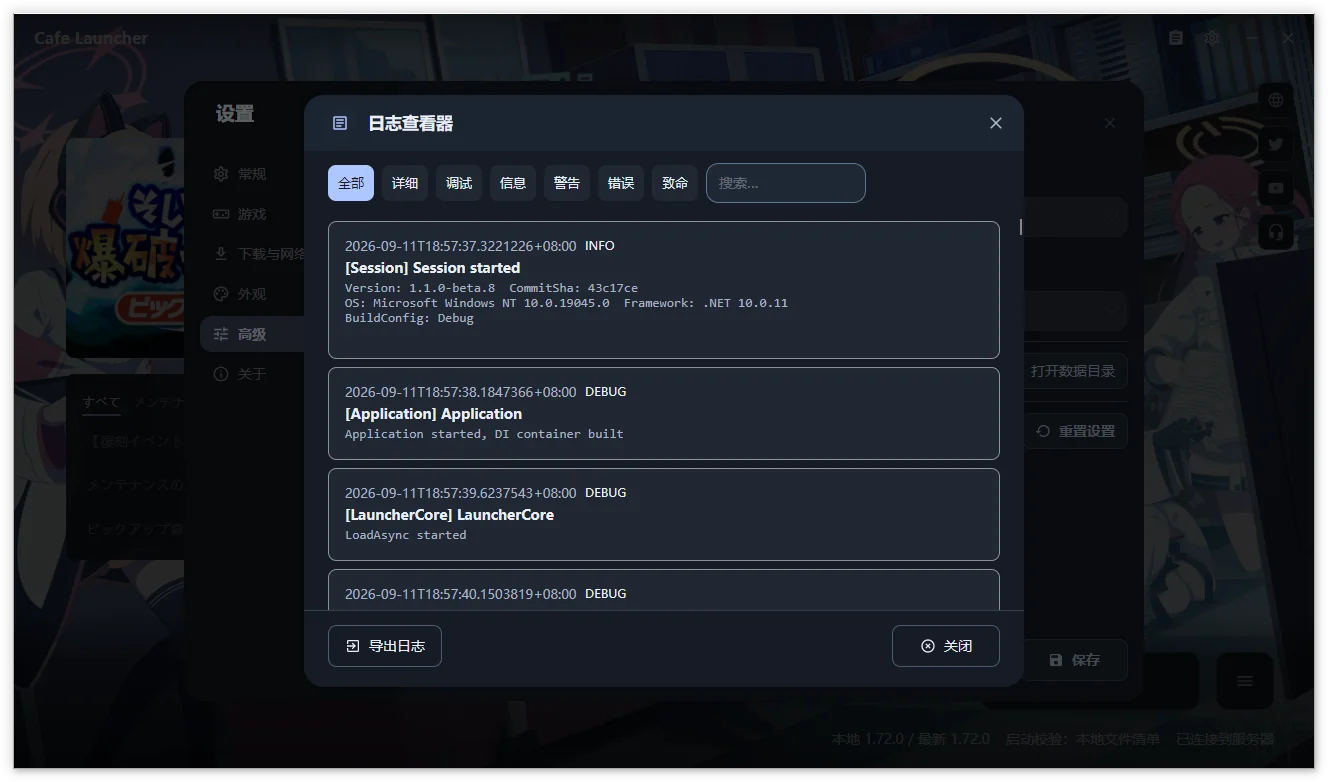
Records load in batches. Filters and search apply only to loaded records. For a complete issue time range, export logs.
System tray
With minimize-to-tray close behavior, the close button hides the window and keeps the process running. The tray can show the main window, start the game, open Settings, or exit completely.
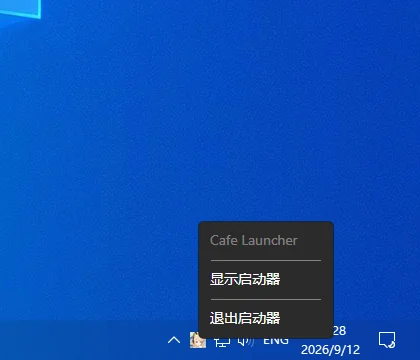
The launch item shows starting/running session status. Actions needing confirmation or Settings restore the main window. Running the launcher again activates the existing instance. One instance owns each data directory, including across Linux login sessions.
Screenshots show Chinese and may be from earlier versions; follow the text for current controls.