English
Installation and First Run
Follow these five steps to prepare the launcher and detect or install the game. You can reuse an existing game without uninstalling the official launcher.
1. Check your platform
| Platform | Packages |
|---|---|
| Windows 10 1809+ / Windows 11 x64 | Installer, portable ZIP |
| macOS Apple Silicon | .app ZIP |
| Linux x64 | DEB, RPM, Arch package, AppImage, tar.gz |
Packages include the .NET Runtime. Confirm that the game directory is writable, disk space is sufficient, and your network can reach the selected download source.
WARNING
macOS and Linux builds are experimental. macOS cannot launch the game. Linux requires separately installed UMU / Proton or Wine, and anti-cheat compatibility is not guaranteed for your setup.
2. Download the right package
Open Releases and download the complete package:
| Filename | Use |
|---|---|
Cafe.Launcher_v*_setup.exe | Standard Windows installation |
Cafe.Launcher_v*_win-x64.zip | Portable Windows build |
Cafe.Launcher_v*_osx-arm64.zip | Apple Silicon Mac |
Cafe.Launcher_v*_linux-x64.deb | Debian, Ubuntu, and related distributions |
Cafe.Launcher_v*_linux-x64.rpm | Fedora, openSUSE, and related distributions |
Cafe.Launcher_v*_linux-x64.pkg.tar.zst | Arch Linux |
Cafe.Launcher_v*_linux-x64.AppImage | Run on Linux without installation |
Cafe.Launcher_v*_linux-x64.tar.gz | Manual Linux deployment |
Older packages may use the Cafe.Launcher.Avalonia prefix. Choose the latest stable release for everyday use; beta and other prerelease labels identify testing builds.
3. Install the launcher
Use the instructions for your package. Exit the old version before manually upgrading. Application files, game files, and user data are stored separately.
Windows installer
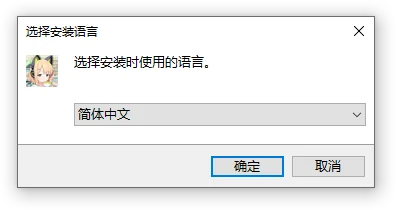
- Run the installer and select English, Simplified Chinese, or Japanese. This choice affects only the installer; choose the launcher language during setup.
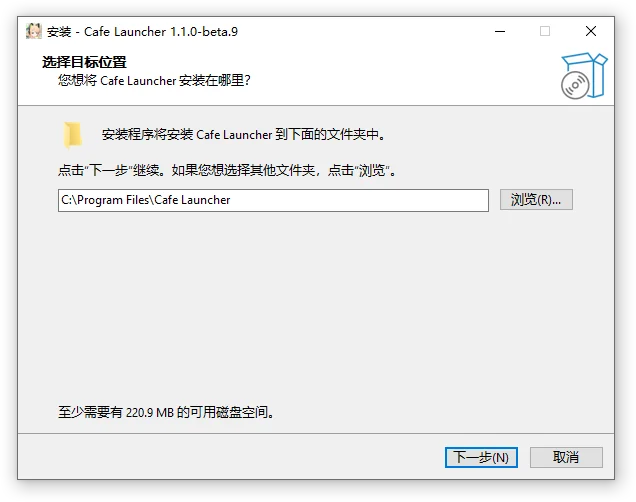
- Accept the administrator prompt and check the destination, normally
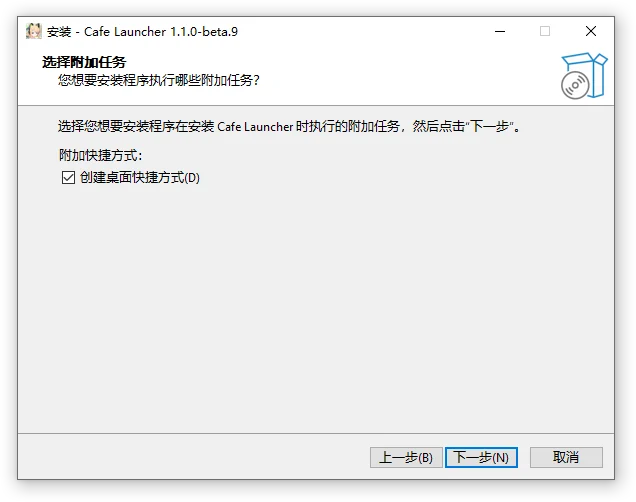
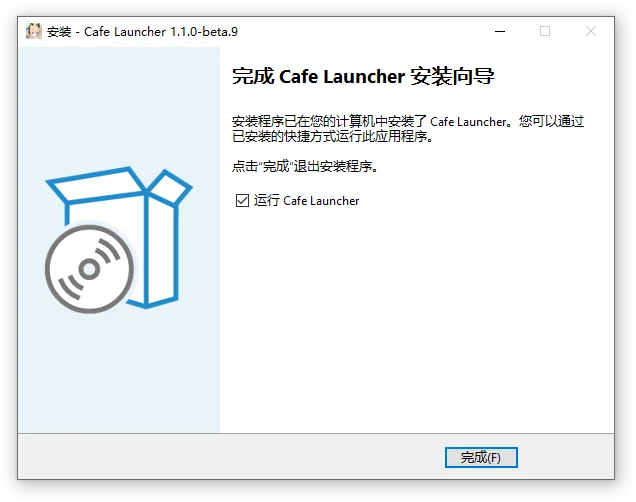
C:\Program Files\Cafe Launcher. - Optionally create a desktop shortcut, finish, and run Cafe Launcher.
Installation, upgrades, and uninstallation apply to all users and require administrator permission. Installing over an existing version preserves separate user data and game files.
Installer screenshots (Chinese)
Windows portable build
Extract the whole ZIP, then run Cafe.Launcher.exe. Do not run from an archive preview. Keep all accompanying dependencies and the video runtime.
The portable build has no standard uninstall entry. Settings and logs still use the system user data directory. Verified in-app updates work for both portable and installed builds. For manual replacement, exit first and replace the complete application directory.
macOS
Extract osx-arm64.zip and move Cafe Launcher.app to Applications. This build requires Apple Silicon.
It can install, update, and repair game files; launching the Windows game is currently unavailable.
Linux
| Package | Installation or launch |
|---|---|
| DEB / RPM | Use the corresponding distribution package manager |
| Arch package | sudo pacman -U ./Cafe.Launcher_v<version>_linux-x64.pkg.tar.zst with the actual filename |
| AppImage | Grant executable permission, then run |
| tar.gz | Extract and run Cafe.Launcher |
System packages provide the cafe-launcher command. If no window appears, launch from a terminal and install missing graphics, font, or other system libraries reported there.
Packages do not install Wine, UMU, or Proton. Prepare a compatibility runtime before launching the game. Linux packages and AppImage default to YostarGames/BlueArchive_JP under your home directory for game files.
4. Complete first-time setup
| Step | What to confirm |
|---|---|
| Language | Launcher interface language |
| Download source | Official supplies original JP resources; Cafe supplies resources from the BlueArchive.Cafe Chinese localization team |
| Game installation path | Choose a base directory or existing installation and check the final YostarGames/BlueArchive_JP path |
| Proxy | Automatic detection, direct connection, or system proxy |
| Confirm your settings | Review and finish, or return to edit an earlier step |
Chinese system languages default to Cafe; other languages default to Official. Stable builds default to the stable update channel, and prerelease builds to beta.
Skipping setup or pressing Esc asks for confirmation before applying defaults. Settings can be changed later.
5. Detect or install the game
For existing files, select the BlueArchive_JP directory. The launcher reads manifest.json and game-launcher-config.json and detects valid installations without downloading the whole game again. Incomplete files are filled in against the selected manifest.
For a new installation, select Install Game and wait for download and verification. Pause and resume are available during transfer.
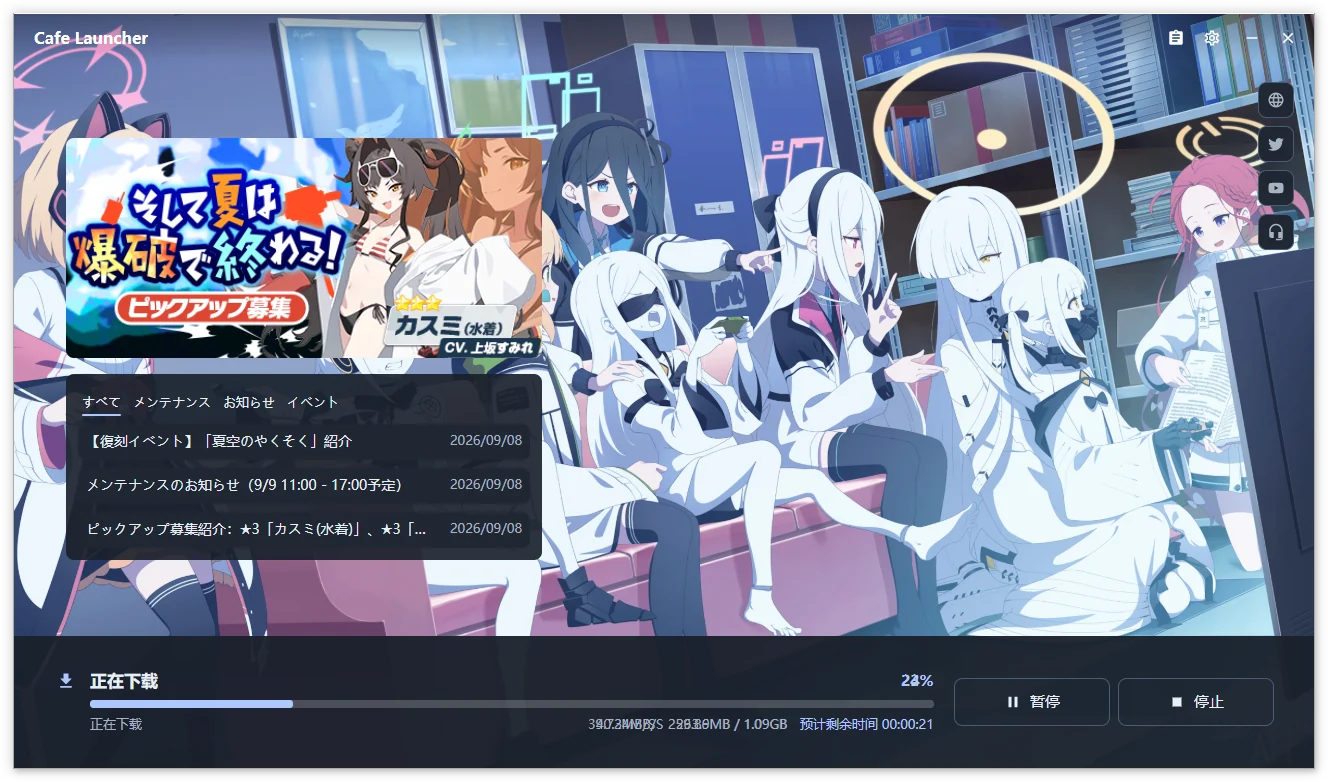
Screenshots show the Chinese interface and may be from an earlier version. Continue with Game operations or the Settings reference.